
At some point, tab management stops being a browser quirk and becomes a full-time job. You have three monitors, seven Chrome windows, and somewhere north of 400 open tabs spanning client work, side projects, academic research, and that rabbit hole you fell into at 11 PM about vintage synthesizers. Closing anything feels like deleting evidence. Keeping everything open feels like drowning.
If that sounds familiar, you are not alone — and you are not broken. Managing thousands of browser tabs is a workflow problem that demands a workflow solution, not willpower. This is the definitive guide for researchers, developers, journalists, analysts, and power users who operate at extreme tab scale in 2026.
Built for extreme tab counts — try Super Session Manager free
Named sessions, auto-snapshots, cloud sync, and search across thousands of saved tabs.
The Psychology of Tab Hoarding at Scale
Before tools, understand behavior. People who accumulate hundreds or thousands of tabs typically share three underlying beliefs:
- "I will need this again." The fear of re-finding information is real when search is unreliable and bookmarks feel like a graveyard.
- "Closing means losing context." A tab is not just a URL — it is position in a mental model, a half-written form, a paused video at minute 14.
- "I can keep track of it." Until you cannot. Human working memory tops out around seven items; tab bars with 80 favicons defeat visual scanning entirely.
The breakthrough is reframing tabs as temporary working memory, not permanent storage. Permanent storage belongs in bookmarks, notes, or named sessions. Working memory belongs in the current window — and only the current window.
The Three-Layer Tab Architecture
Power users who manage thousands of tabs successfully use a three-layer system. Each layer has a distinct purpose, retention policy, and tool.
Layer 1: Active Window (0–25 tabs)
Your active window is what you are doing right now. Nothing else belongs here. If you are writing a report, this window contains the doc, two reference articles, and maybe a calendar tab. If you exceed 25 tabs in the active window, you are mixing contexts — split into a new window or save as a session.
Layer 2: Named Sessions (25–500 tabs per session)
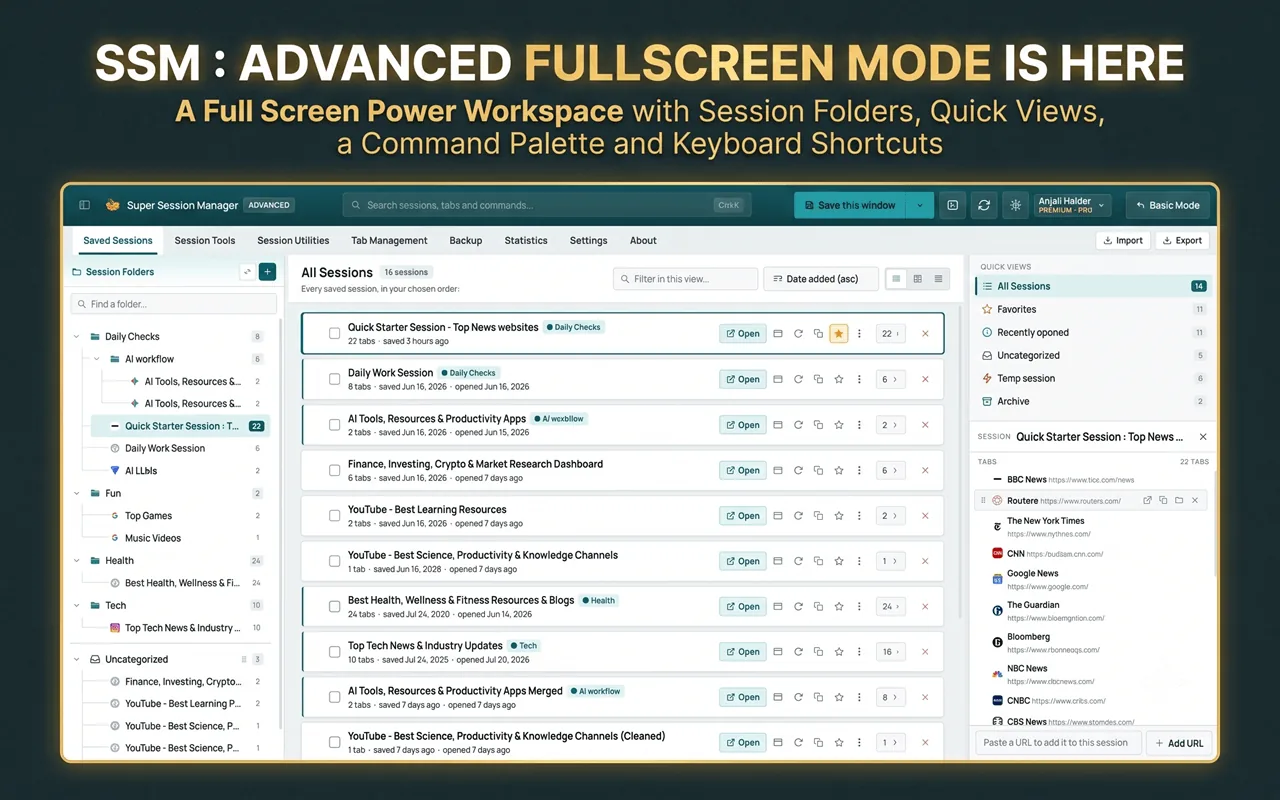
Named sessions are paused workspaces. Each session represents a project, research thread, or context you will return to within days or weeks. A browser session manager like Super Session Manager stores these as full window snapshots — tab order, pinned status, multiple windows — and lets you restore them in one click.
This is where thousands of tabs actually live in a well-organized system: not open, but saved, labeled, and searchable.
Layer 3: Permanent Archive (bookmarks + exports)
When a project ends, distill the 5–10 URLs you will genuinely reference again into bookmarks or a notes app. Export the full session as JSON for archival if regulations or personal preference require it. Delete the session. Thousands of tabs become dozens of permanent references.
Setting Up Super Session Manager for Extreme Scale
At thousands of tabs, your session manager is infrastructure, not a convenience. Configure it deliberately:
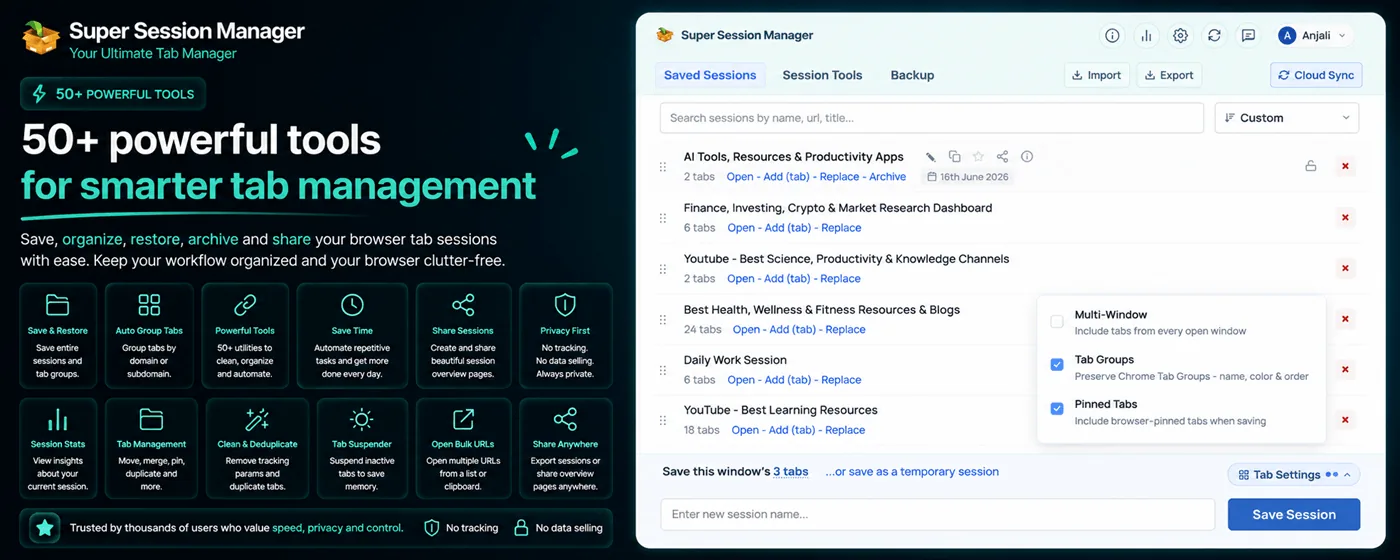
- Install and pin the extension. Install Super Session Manager from the Chrome Web Store and pin it to your Chrome toolbar for one-click access.
- Assign a keyboard shortcut. Go to
chrome://extensions/shortcutsand bind "Save window" to something memorable likeCtrl+Shift+S. - Enable auto-snapshots. Rolling snapshots are your crash insurance. At extreme tab counts, crashes are more likely due to memory pressure — snapshots are non-negotiable.
- Enable cloud sync for critical sessions. Free tier syncs 5 named sessions; Pro syncs unlimited. Choose your most important cross-device sessions for cloud backup.
- Review session statistics weekly. The Stats dashboard shows which sessions you actually restore versus which are digital clutter.
Naming Conventions That Scale to Hundreds of Sessions
When you have 50+ named sessions, naming is navigation. Use a consistent prefix system:
| Prefix | Example | Use Case |
|---|---|---|
| [CLIENT] | [CLIENT] Acme — Q2 Proposal | Billable client work |
| [RESEARCH] | [RESEARCH] LLM Benchmarks 2026 | Deep-dive investigations |
| [DEV] | [DEV] API Migration — Auth Module | Software development |
| [READ] | [READ] Productivity Essays | Reading queues |
| [PERSONAL] | [PERSONAL] Vacation Planning | Non-work contexts |
Prefixes enable mental sorting and make Super Session Manager's search dramatically faster: type [RESEARCH] and see every research session instantly.
Workflows by Role
Researchers and Academics
Academic research generates tab volume faster than any other workflow. A single literature review can produce 200 tabs across databases, PDF viewers, citation tools, and note apps.
Recommended workflow: One Chrome window per research question. When you pivot to a sub-question, open a new window — do not add to the existing pile. Save each window as a named session before switching contexts. Use auto-snapshots as a safety net during long reading sessions.
At the end of each week, review sessions older than 7 days. Bookmark the 10% of URLs worth keeping permanently. Delete or archive the rest. This prevents session libraries from growing without bound.
Software Developers
Developers accumulate tabs from documentation, GitHub issues, Stack Overflow, localhost dev servers, staging environments, and monitoring dashboards. Context-switching between features or bug fixes is the primary driver.
Recommended workflow: Save a session per feature branch or ticket (e.g., "[DEV] JIRA-4521 — OAuth refactor"). Before switching tickets, save and close. Restore when you resume. Pair with Chrome Tab Groups inside the active window for docs-vs-code-vs-testing separation.
For on-call rotations, maintain a pinned session called "[DEV] On-Call Runbook" with dashboards, playbooks, and escalation contacts — always one click away.
Journalists and Content Creators
Story research spans primary sources, social media threads, competitor coverage, image libraries, and draft documents. Deadlines create pressure to keep everything visible.
Recommended workflow: One session per story. Name it with the working headline and date. When the story publishes, export the session JSON as an archive (source trail), bookmark key references, and delete the session. Your session list stays lean.
Product Managers and Analysts
Competitive analysis, user research, analytics dashboards, and stakeholder docs create multi-week tab accumulations across parallel initiatives.
Recommended workflow: Align sessions to initiatives, not days. Use cloud sync for the 3–5 active initiatives you work on across devices. Archive completed initiatives monthly.
Memory Management: Keeping Chrome Fast at Scale
Thousands of tabs — even saved ones — are not the problem. Open tabs are. Each active tab consumes 50–300 MB of RAM depending on the page. At 100 open tabs, you can easily consume 8–15 GB of memory, triggering system-wide slowdowns and Chrome crashes.
Strategies to Stay Fast
- Close aggressively, save liberally. If you have not looked at a tab in 2 hours, save the window and close it. Super Session Manager makes this painless.
- Enable Chrome Memory Saver. Settings → Performance → Memory Saver suspends inactive tabs. Pair with session saves for double protection.
- Audit extensions quarterly. Extensions multiply memory overhead. Remove anything you have not used in 90 days.
- Use separate Chrome profiles for work and personal. Profiles isolate memory, cookies, and session storage. A personal YouTube rabbit hole cannot crash your work browser.
- Limit active windows to three. More than three concurrent windows signals context overload. Save and close the oldest.
Search: Finding One Tab Among Thousands
At extreme scale, browsing a session list visually fails. Search becomes your primary navigation tool. Super Session Manager indexes session names, tab URLs, and tab titles across all saved sessions.
Search tactics:
- Search by domain when you remember the site but not the page:
arxiv.org - Search by project prefix:
[RESEARCH] - Search by keyword from the title when you remember the topic but not the source
- Use the web app at sessionmanager.net to search cloud-synced sessions from any device
For more organization fundamentals, see our guide on how to organize hundreds of browser tabs.
Disaster Recovery at Tab Scale
When you manage thousands of tabs, a single crash can represent days of curation. Build redundancy:
- Auto-snapshots (local): Rolling backups of open windows. Free tier keeps 3; Pro keeps 100.
- Cloud sync (remote): Named sessions backed up to the cloud. Survives hardware failure.
- Weekly JSON export (archive): Manual export to Google Drive or similar. Full data portability.
Follow the 3-2-1 backup rule: three copies, two media types, one off-site. Read the full walkthrough in our backup and sync browser sessions guide.
Monthly Maintenance Ritual
Session libraries require grooming. Block 30 minutes on the first Monday of each month:
- Audit session stats. Which sessions have you restored in the last 30 days? Keep those. Everything else is a candidate for archive or deletion.
- Delete stale sessions. Sessions you have not opened in 60+ days and do not anticipate needing should go. Export first if uncertain.
- Consolidate overlapping sessions. Three sessions for the same project? Merge tabs into one, delete the duplicates.
- Update naming. Rename vague sessions ("Stuff", "Tabs 2") to meaningful labels or delete them.
- Export and verify. Download a JSON backup. Confirm it imports correctly.
What Not to Do at Extreme Tab Scale
- Do not use bookmarks as a tab overflow. Bookmarking 200 tabs creates a folder you will never open. Use named sessions instead — they preserve order and restore in one click.
- Do not rely on browser history. History is chronological, not contextual. Reconstructing a 40-tab research window from history takes hours.
- Do not install five tab extensions. OneTab + Session Buddy + a tab suspender + Super Session Manager creates conflicts and confusion. Pick one session manager and commit.
- Do not skip auto-snapshots. At thousands of tabs, manual-only saving guarantees a catastrophic loss event eventually.
- Do not treat every tab as equally important. Most tabs are disposable. The value is in the curated set, not any individual page.
Comparison: Approaches to Extreme Tab Management
| Approach | Scales to 1000+ | Crash Safe | Searchable | Cross-Device | Effort |
|---|---|---|---|---|---|
| Keep all tabs open | ❌ | ❌ | ⚠️ Chrome tab search only | ❌ | None (fails eventually) |
| Bookmarks only | ⚠️ | ✅ | ⚠️ | ✅ | High maintenance |
| OneTab lists | ⚠️ | ⚠️ | ❌ | ❌ | Low |
| Super Session Manager | ✅ | ✅ | ✅ | ✅ | Low |
Getting Started: Your First Week
Transitioning from tab chaos to a session-based system takes about seven days. Here is a day-by-day plan:
- Day 1: Install Super Session Manager from the Chrome Web Store. Save your current windows as "[MIGRATION] Week 0 — Before". Enable auto-snapshots.
- Day 2: Assign a save keyboard shortcut. Save before every context switch.
- Day 3: Close any window you have saved. Notice that anxiety decreases when you trust the save.
- Day 4: Introduce naming prefixes. Rename existing sessions.
- Day 5: Enable cloud sync for your top 3 sessions.
- Day 6: Review stats. Delete one session you know you will not need.
- Day 7: Export a JSON backup. Celebrate having fewer than 30 open tabs.
Save before you switch. Every time you move from one project to another, save the current window as a named session and close it. This single habit is what separates people who drown in tabs from people who manage thousands effortlessly.
Conclusion: Thousands of Tabs, Zero Chaos
Managing thousands of browser tabs is not about discipline — it is about architecture. Active windows stay small. Named sessions hold your paused contexts. Archives hold what matters permanently. Auto-snapshots and cloud sync protect against disaster. Search replaces visual scanning.
Super Session Manager was built for exactly this scale: unlimited local sessions, rolling auto-snapshots, cross-session search, optional cloud sync, and a statistics dashboard to keep your library healthy. Install it free from the Chrome Web Store, save your first session, and close the tabs you were afraid to close. For a dense, skimmable reference to pair with this guide, see our 50 browser tab management tips for developers, researchers, and power users.