
Your browser sessions represent hours of work — research tabs curated over an afternoon, project workspaces built up over weeks, reference collections you return to daily. Keeping them only on one machine is a single point of failure. A hard drive failure, a stolen laptop, or a fresh OS install can erase them permanently.
This guide explains every method available in 2026 for backing up and syncing browser sessions across devices, from Chrome's native sync to dedicated session manager extensions with cloud backup.
Backup your sessions to the cloud — Super Session Manager free
Save entire browser windows in one click. Restore them instantly. Local-first with optional cloud sync.
Why Backing Up Browser Sessions Matters
Most people think about browser backup only after they've lost something important. The risk is real:
- Computer failure — Hard drives die. SSDs fail. Losing your machine means losing local-only browser sessions.
- Accidental deletion — Clearing Chrome data wipes local extension storage.
- Multi-device workflows — Switching between a desktop and laptop without sync means recreating sessions manually.
- OS reinstall — Chrome profiles are tied to local storage. A fresh install loses all extension data.
Method 1: Chrome Sync (Built-in, Free)
Chrome's built-in sync (Sign in → Turn on Sync) backs up and syncs:
- Bookmarks
- Passwords
- Open tabs (recent tabs from other devices)
- Tab groups
- Browser settings and extensions
What it doesn't sync: Named browser sessions saved by third-party extensions like Super Session Manager. Chrome Sync only handles Chrome's own data, not extension storage.
Chrome Sync is a good baseline but not a complete solution for power users who rely on session manager extensions.
Method 2: Super Session Manager Cloud Sync (The Recommended Approach)
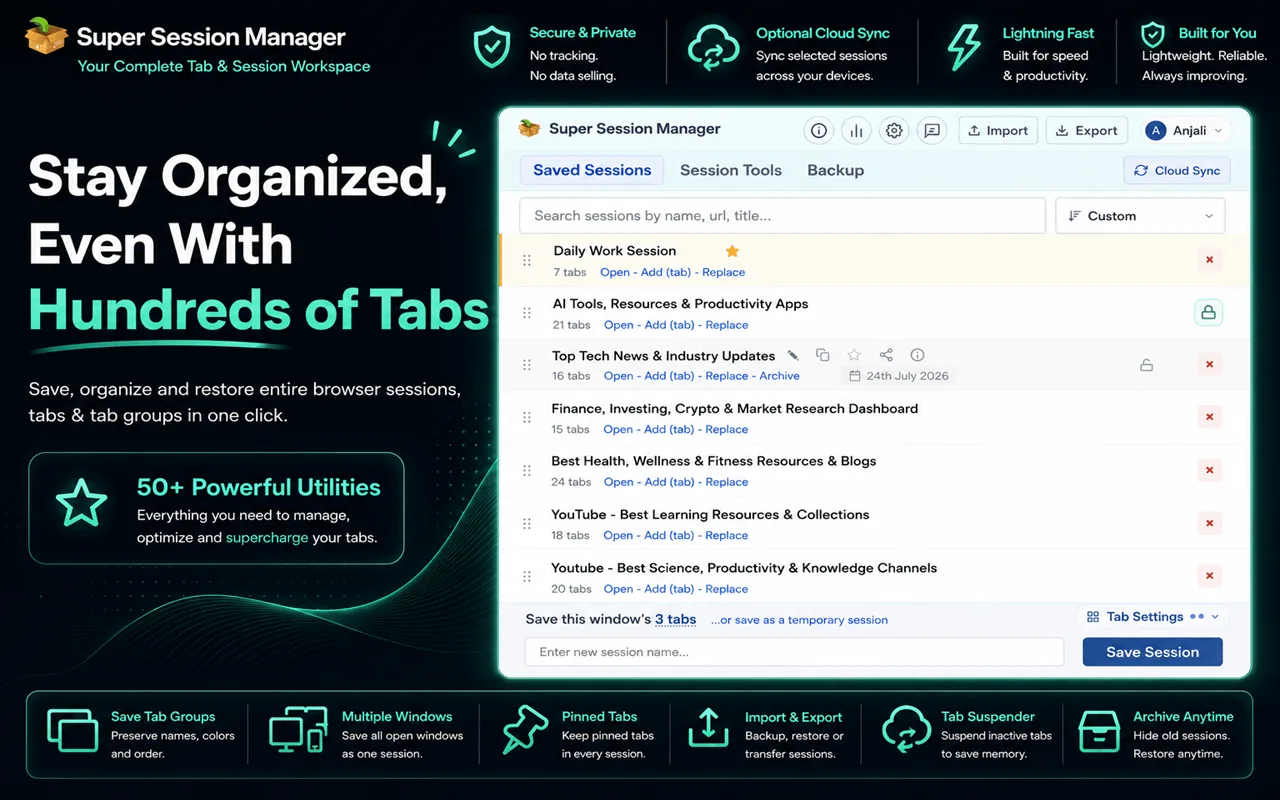
As a dedicated browser session manager, Super Session Manager has its own cloud sync system that backs up your named sessions to the cloud independently of Chrome Sync. Here's how it works:
Setup
- Install Super Session Manager on Chrome.
- Click the extension icon → sign in with Google or email.
- In Settings, enable Cloud Sync.
- Your named sessions automatically sync to the cloud.
- Install Super Session Manager on your other devices and sign in with the same account.
What Gets Synced
- Named sessions (free: 5, Pro: unlimited)
- Session names, tab URLs, tab order, pinned status
- Session metadata (last used, tab count)
What Stays Local
- Rolling auto-snapshots (on-device only for privacy)
- Sessions you've marked as local-only
Cloud sync can be disabled entirely in Super Session Manager's settings. When disabled, no data leaves your device.
Method 3: Manual JSON Export/Import
For users who don't want cloud sync, both Super Session Manager and Session Buddy support manual export as JSON files. This provides a portable backup you control completely.
How to Back Up Sessions Manually
- Open Super Session Manager.
- Go to Settings → Export.
- Download the JSON file — it contains all your session data.
- Store the file in Google Drive, Dropbox, iCloud, or any backup location you trust.
- To restore on a new machine, install Super Session Manager and use Import → select your JSON file.
Recommended frequency: Export once a week or whenever you create important new sessions.
Method 4: Browser Profile Backup
Chrome stores all extension data in its User Data folder. Backing up this folder effectively backs up all extension data, including Super Session Manager sessions.
- Windows:
%LOCALAPPDATA%\Google\Chrome\User Data\ - Mac:
~/Library/Application Support/Google/Chrome/ - Linux:
~/.config/google-chrome/
Copy this folder to an external drive or cloud storage. To restore, replace the User Data folder on the new machine (with Chrome closed). Note: this approach copies the entire profile — all extensions, passwords (if not using Chrome Sync), and settings.
Comparing Cross-Device Session Sync Options
| Method | Named Sessions | Automatic | Cross-Device | Privacy Control | Cost |
|---|---|---|---|---|---|
| Chrome Sync | ❌ | ✅ | ✅ | ⚠️ Google server | Free |
| SSM Cloud Sync (free) | ✅ (5 sessions) | ✅ | ✅ | ✅ opt-in, disableable | Free |
| SSM Cloud Sync (Pro) | ✅ unlimited | ✅ | ✅ | ✅ opt-in, disableable | ~$3/mo |
| Manual JSON export | ✅ | ❌ | ✅ | ✅ full control | Free |
| Profile folder backup | ✅ | ❌ | ⚠️ manual copy | ✅ full control | Free |
Best Practices for Session Backup
Follow the 3-2-1 Rule
Keep 3 copies of important sessions: 2 local (extension storage + exported JSON) and 1 cloud (Super Session Manager sync or a backed-up JSON in Google Drive).
Automate What You Can
Enable Super Session Manager's cloud sync and auto-snapshots. The less friction in your backup process, the more reliably it happens.
Test Your Restores
Periodically verify that your backup sessions actually restore correctly. Import a JSON backup on a second machine and confirm the tabs are as expected.
Name Sessions Before Syncing
Sessions without meaningful names are hard to work with across devices. Before enabling cloud sync, rename all sessions descriptively. See our guide on organizing browser tabs for naming conventions that scale.
Privacy Considerations for Cloud Session Sync
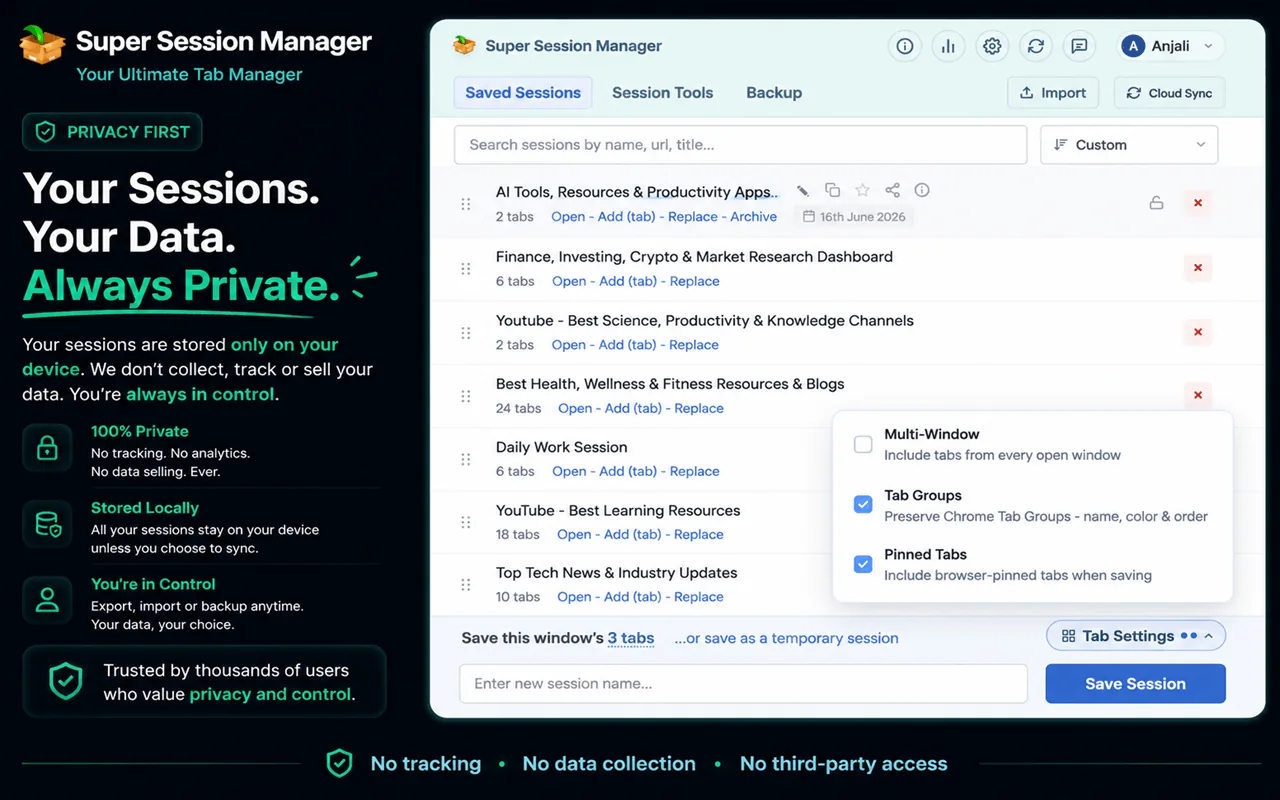
When you sync sessions to the cloud, the service provider can see the URLs and tab titles in those sessions. This is true for all cloud sync options. Super Session Manager takes a privacy-conscious approach:
- Cloud sync is opt-in and off by default.
- Auto-snapshots (which capture all windows) are stored locally only and never uploaded.
- You can disable cloud sync at any time in the extension settings — data stops syncing immediately.
Multi-Device Setup Walkthrough
Here is a complete setup for syncing sessions between a work desktop and personal laptop:
- Install Super Session Manager from the Chrome Web Store on both machines.
- Sign in with the same account on both (Google or email).
- On the desktop, enable Cloud Sync in extension settings.
- Save or mark your most important sessions for sync (free: 5, Pro: unlimited).
- On the laptop, open Super Session Manager — synced sessions appear automatically.
- Restore any session on the laptop to continue where you left off.
Auto-snapshots remain local to each device — they capture device-specific open windows and do not sync. This is intentional for privacy: a snapshot of everything open on your work machine should not automatically appear on your personal laptop.
Disaster Recovery Scenarios
| Disaster | Recovery Method | Preparation Required |
|---|---|---|
| Chrome profile corrupted | JSON import | Weekly JSON export to cloud storage |
| Laptop stolen | Cloud sync on new machine | Cloud sync enabled before incident |
| Accidental session delete | Auto-snapshot restore | Auto-snapshots enabled |
| OS reinstall | JSON import or cloud sync | Either export or sync configured |
| Chrome data clear | Cloud sync re-pull | Cloud sync with same account |
Enterprise and Compliance Notes
If you work in a regulated environment (healthcare, finance, legal), check your organization's policy on browser extensions and cloud data storage. Super Session Manager supports a fully local-only mode: disable cloud sync, use JSON exports stored on approved corporate storage, and rely on auto-snapshots for crash recovery without any data leaving the device.
JSON exports are portable and auditable — you can inspect exactly which URLs are stored, archive them per retention policy, and delete them on schedule.
Sync Troubleshooting
If cloud sync does not appear to work between devices, check these common issues:
- Same account? Both devices must be signed into the same Super Session Manager account.
- Sync enabled? Cloud sync is off by default. Enable it in extension settings on each device.
- Free tier limit? Only 5 sessions sync on free. Pin your most important sessions for sync or upgrade to Pro for unlimited.
- Network/firewall? Corporate firewalls may block sync API calls. Try on a personal network to isolate the issue.
- Extension updated? Ensure both devices run the latest extension version.
JSON export/import always works as a fallback regardless of sync issues.
Scheduled Backup Routine
Automate backup discipline with a recurring calendar reminder:
- Weekly (5 min): Export JSON, upload to Google Drive or Dropbox.
- Monthly (15 min): Review synced sessions, delete stale ones, verify restore on a second device.
- Before travel: Confirm cloud sync is current. Export JSON as belt-and-suspenders.
- Before new machine setup: Export JSON from old machine, import on new.
Putting It All Together
The ideal backup strategy for most users in 2026:
- Daily: Auto-snapshots run silently (Super Session Manager, enabled by default).
- Per project: Save named sessions when switching contexts.
- Cross-device: Cloud sync for 3–5 active sessions (free tier) or unlimited (Pro).
- Weekly: JSON export to cloud storage as archive.
- Monthly: Verify restore works; delete stale sessions.
This five-layer approach takes less than 10 minutes per week to maintain and protects against every common data loss scenario: crashes, accidental closes, hardware failure, OS reinstalls, and multi-device workflows.
Install Super Session Manager from the Chrome Web Store, enable auto-snapshots and cloud sync, and export your first JSON backup today. Your future self — on a new laptop after a crash at 4 PM on a Friday — will thank you.
Session backup is insurance — boring until you need it, invaluable when you do. The users who never lose work are not luckier; they are better prepared. Auto-snapshots, cloud sync, and JSON exports take minutes to configure and run silently forever. Configure them today with Super Session Manager and cross device session loss off your list of professional risks.
The hardest part of backup is starting. Super Session Manager makes the first step effortless: install, enable auto-snapshots, save one named session. From there, add cloud sync for cross-device sessions and weekly JSON exports for archival. Three layers, ten minutes of setup, years of protection. Your browser sessions represent real work — treat them accordingly.
Cross-device work is the norm in 2026. Your browser sessions should move with you as easily as your email or calendar. Chrome Sync does not make that happen for extension sessions. Super Session Manager does — optionally, securely, and with local-only alternatives for those who need them. Configure your backup stack this week and stop treating session preservation as an afterthought.
Backup is not exciting until you need it. A single JSON export or enabled cloud sync separates a minor inconvenience from a lost afternoon of research. Take ten minutes today to configure Super Session Manager's backup features. It is the highest-return browser configuration you can make.
Free tier includes 5 cloud-synced sessions and unlimited local storage. Start there. Upgrade only if your workflow demands it. Most users never need to. The free tier is genuinely complete for individual users with up to 5 cloud-synced sessions and unlimited local backups. Install today and configure your backup stack in ten minutes. Your sessions deserve proper protection right now — before you need it.