
You open Chrome and count. 47 tabs. Or maybe 112. Or — if you're a certain type of researcher or developer — upwards of 200. Somewhere in that chaos is the article you actually need, the form you were filling out, and the three YouTube videos you meant to watch before your meeting. Welcome to the modern browser experience.
Tab overload is a documented phenomenon tied to modern information work. The good news: organizing hundreds of browser tabs is a learnable skill with the right system. This guide covers proven strategies, tools, and habits that actually work in 2026.
The fastest way to organize your tabs: try Super Session Manager free
Save entire browser windows in one click. Restore them instantly. Local-first with optional cloud sync.
Why We Accumulate So Many Tabs
Before organizing, it helps to understand the behavior. Most tab hoarders share a few patterns:
- Fear of losing information — "I'll need this later" is the most common reason tabs don't get closed.
- Procrastination on decisions — "I'm not sure which product to buy yet, so I'll keep them all open."
- Interrupted workflows — Mid-task context switches leave tabs open as "mental bookmarks."
- Trust deficit — No reliable way to save tabs means they stay open as insurance.
The last point is key. Most tab overload is a tooling problem, not a discipline problem. Once you have a reliable way to save and retrieve tabs, you stop being afraid to close them.
Strategy 1: The Session-Based Workflow
The most effective organizational system for power users is session-based browsing: instead of keeping all tabs open all the time, you organize tabs into named sessions by project, context, or time. For a deeper walkthrough of naming, folders, and per-project setups, see our guide on organizing browser tabs by project, work, and research.
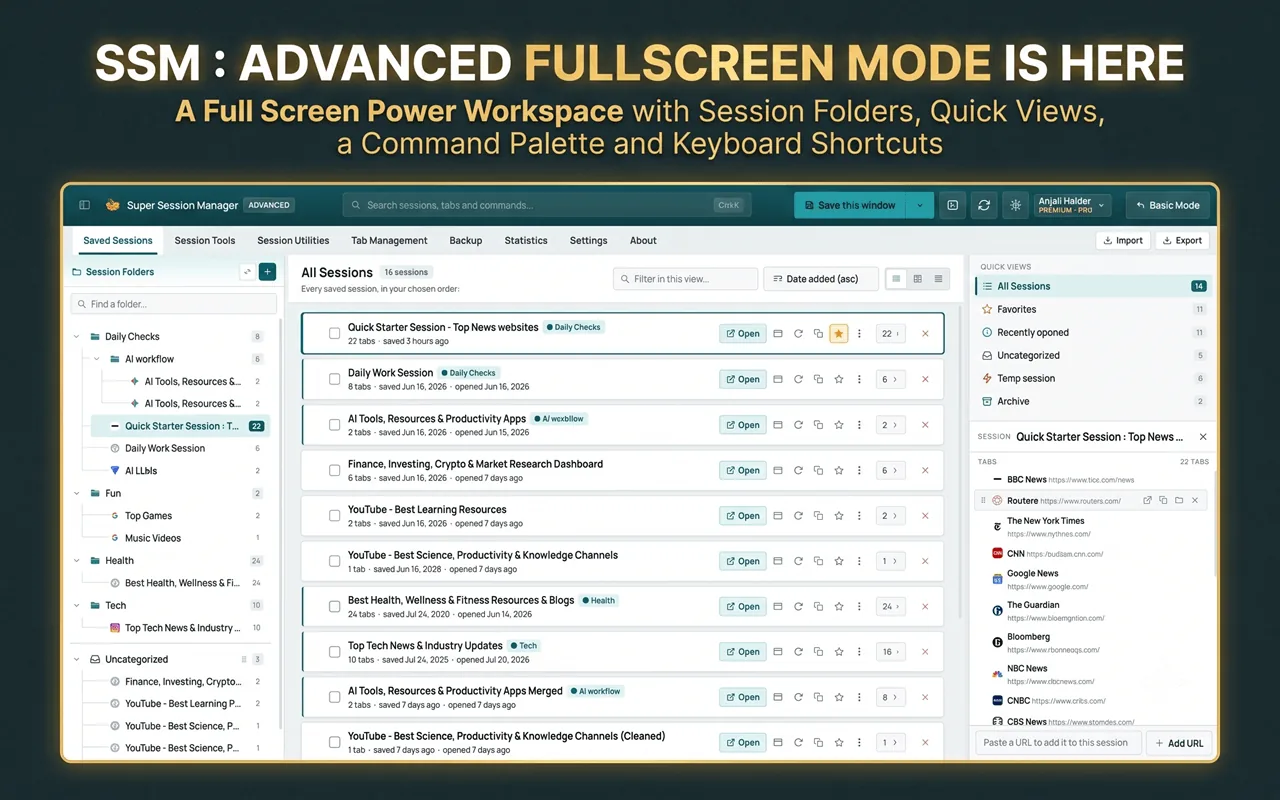
How to Implement It
- Install Super Session Manager from the Chrome Web Store.
- Create sessions for your main contexts: "Work — Project Alpha", "Research — AI Tools", "Reading Queue", "Shopping", "Personal Finance".
- When you start a new context, open a new window, do your work, and save it as a session when you're done or interrupted.
- Close windows you're not actively using. They're safe in your sessions and one click to restore.
Within two weeks, most users report having fewer than 10 tabs open at any time, because they trust their session manager to preserve context.
Strategy 2: Chrome Tab Groups for In-Window Organization
Chrome's native Tab Groups let you color-code and label groups of related tabs within a single window. Right-click any tab → "Add tab to new group" → name it and assign a color.
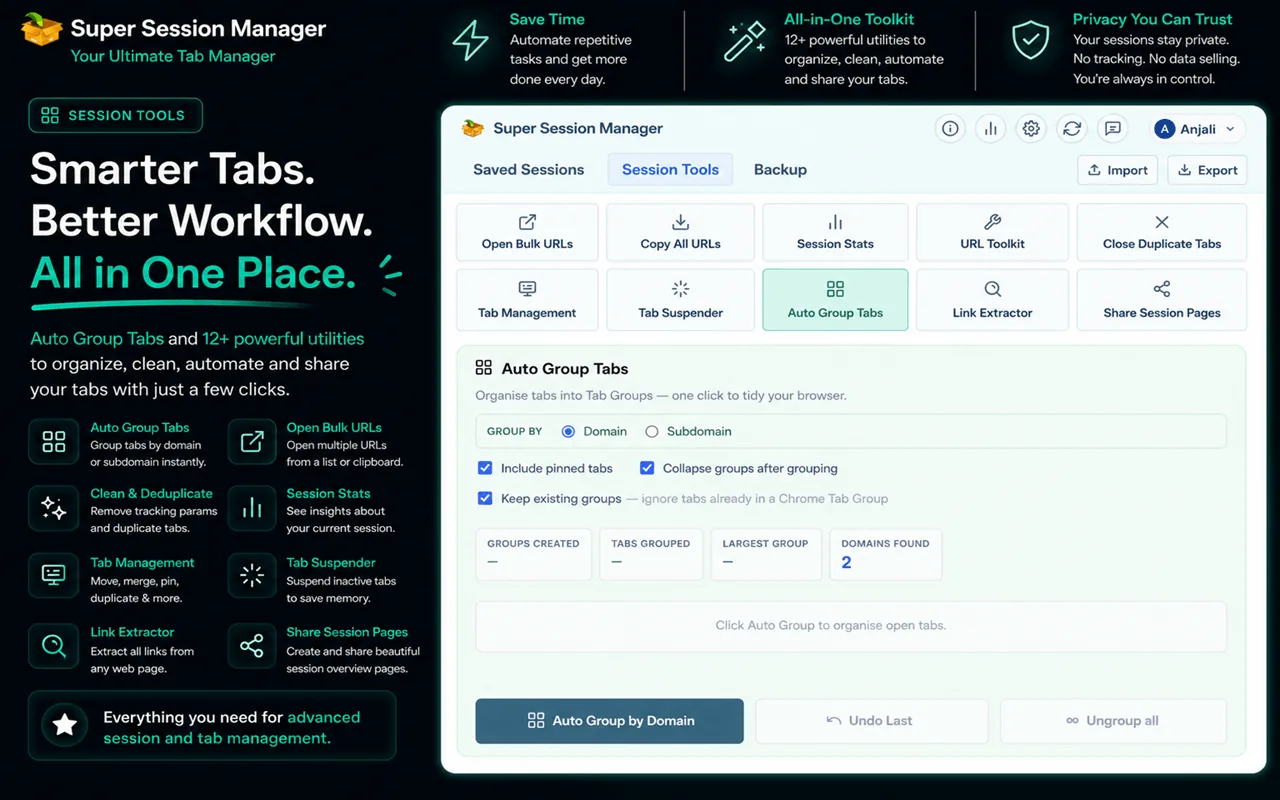
Best Practices
- Use no more than 4–5 groups per window to avoid cognitive overload.
- Use consistent naming: always the same format (e.g., "[Project] — [Status]").
- Collapse groups you're not actively using by clicking the group label.
Tab Groups are great for within-session organization. For saving and restoring those groups, pair them with Super Session Manager — which preserves tab groups when saving windows.
Strategy 3: The Two-Window Rule
A simple heuristic: allow yourself a maximum of two browser windows at once. Window 1 is active work. Window 2 is reference and background. Any tabs outside these windows get saved as named sessions and closed.
This constraint forces deliberate decisions about what you're actually working on versus what you're just "keeping around."
Strategy 4: The Inbox Zero Equivalent for Tabs
Each morning or the end of each day, process your tabs:
- For each open tab, answer: Is this relevant to what I'm doing today?
- If yes → keep it open or add to the relevant session.
- If no but maybe later → save to a named session and close.
- If no and probably not → close without saving.
This "tab triage" takes 5–10 minutes and dramatically reduces your open tab count.
Strategy 5: Use Session Statistics to Understand Your Habits
Super Session Manager includes a Stats dashboard showing your total session count, tab counts, most-used sessions, last-used timestamps, and storage usage. Reviewing your stats occasionally reveals:
- Which sessions you actually use (keep) vs. just save and forget (review or delete).
- How many tabs you typically have in a session (signals whether sessions are too broad).
- Storage trends — a signal that you might be over-saving.
Strategy 6: Archive Old Sessions Regularly
Every month, review sessions older than 30 days. For each:
- If it was a project that's complete → export as JSON as an archive and delete the session.
- If it's a reading list you haven't touched → move the key URLs to bookmarks and delete the session.
- If it's actively relevant → keep it and pin it for visibility.
Strategy 7: The Dedicated Research Window
For researchers, journalists, academics, and developers: when you start a new research task, open a new Chrome window. All tabs related to that task go in that window only. When you need to pause, save the entire window as a named session ("Research: Machine Learning 2026") and close it.
This is the most powerful habit change for people who accumulate hundreds of tabs. See our guide on managing thousands of browser tabs for more advanced strategies.
Comparison: Tab Organization Strategies
| Strategy | Effort to Set Up | Daily Maintenance | Best For |
|---|---|---|---|
| Session-based workflow | Low | Low | All power users |
| Chrome Tab Groups | Low | Medium | Within-window org |
| Two-Window Rule | None | Medium | Focus-oriented users |
| Inbox Zero for tabs | None | Medium (daily) | Knowledge workers |
| Monthly archive review | Low | None (monthly) | Long-term hoarders |
| Dedicated research windows | Low | Low | Researchers |
What Not to Do
- Don't use bookmarks as your tab safety net. You'll never open them. Named sessions in Super Session Manager are both easier to create and easier to retrieve.
- Don't install a tab limiter unless you understand why. Artificial limits can feel punishing without addressing the root cause.
- Don't rely on browser history as a tab backup. It's not organized, not labeled, and expires.
Building a Sustainable Tab Budget
Think of open tabs as a budget, not a unlimited resource. A sustainable daily budget for most knowledge workers is 15–30 open tabs across 1–2 windows. Everything beyond that should live in named sessions. If you're regularly sitting at 100 or more open tabs specifically because you're afraid of losing something, our guide on managing 100+ Chrome tabs without losing your work focuses on that exact situation.
Track your number for one week. Each morning, note your open tab count. If it trends upward, you are accumulating faster than you are saving-and-closing. Adjust by making "save before switch" non-negotiable.
Keyboard-First Organization
Mouse-driven tab management does not scale to hundreds of tabs. Keyboard workflows matter:
Ctrl+Shift+A— Chrome's tab search (find open tabs by title).- Your Super Session Manager save shortcut — save without leaving the keyboard.
Ctrl+W— close tab. Use aggressively once sessions are saved.Ctrl+Shift+T— undo accidental closes.
Assign your session save shortcut at chrome://extensions/shortcuts. Muscle memory makes saving as fast as opening a new tab.
Team and Collaboration Considerations
If you share research with colleagues, export session JSON or share specific URLs from Super Session Manager's session view. For ongoing shared resource collections, pair sessions (your active workspace) with bookmarks or a team wiki (the permanent shared library).
Understand the difference in our bookmark manager vs session manager guide.
Measuring Your Progress
Tab organization is a measurable habit. Track these weekly metrics in a notes app or spreadsheet:
- Average open tab count — target: under 25
- Number of named sessions — growing is fine; stale sessions should shrink monthly
- Session restores per week — if zero, your sessions may be too broad or poorly named
- Crash recovery events — should trend to zero with auto-snapshots
- Time to find a saved tab — should be under 10 seconds with search
Super Session Manager's statistics dashboard provides session count, tab totals, and last-used dates — use it as your primary data source.
Teaching Tab Organization to Your Team
If your team suffers from collective tab chaos, propose a lightweight standard:
- Everyone installs Super Session Manager (free).
- Session naming convention:
[PROJECT] Description. - Save before every context switch — no exceptions in meetings.
- Share JSON exports or URLs from sessions instead of pasting 20 links in Slack.
Teams that adopt session-based browsing report fewer "can you resend those links?" messages and faster onboarding when someone takes over a project mid-stream.
From Hundreds to Thousands: When to Level Up
The strategies in this guide scale from 100 to 1000+ tabs. If you are approaching extreme scale, additional techniques apply: prefix naming systems, monthly session audits, JSON archival, and strict active-window budgets. Our ultimate guide to managing thousands of browser tabs covers that next level in detail.
The principle remains the same at every scale: open tabs are working memory, saved sessions are paused workspaces, bookmarks are permanent reference. Master that distinction and tab count becomes a choice, not a burden.
Install Super Session Manager from the Chrome Web Store, save your first named session today, and start the "save before switch" habit. Within two weeks, your tab bar will look different — and your browser will feel faster, calmer, and entirely under your control.
Tab organization is not about having fewer interests — it is about having better infrastructure for those interests. Researchers need their 200 tabs; they just need them saved as named sessions, not cluttering the tab bar. Developers need localhost, docs, and GitHub open; they just need those grouped by ticket, not scattered across six windows. Super Session Manager provides that infrastructure. The strategies in this guide show you how to use it.
Start with one strategy from this guide — the session-based workflow is the highest-impact choice for most readers. Install Super Session Manager, create your first three named sessions, and practice closing windows after saving. The anxiety of tab closure fades quickly when you trust your infrastructure. Within a month, hundreds of open tabs become dozens of well-named sessions and a calm, fast browser.
Tab organization is a skill that compounds. Each named session you create makes the next context switch faster. Each window you close after saving frees RAM for the work that matters. Each monthly audit keeps your library lean. The strategies in this guide are not theoretical — they are the daily practices of researchers, developers, and analysts who manage extreme tab counts without stress. Join them.
The goal is not minimalism for its own sake. It is clarity — knowing what you are working on, where your paused projects live, and how to find any saved tab in seconds. That clarity is available today with the strategies above and Super Session Manager as your infrastructure.
Free to start. No account required. Install Super Session Manager and organize your first session in under a minute. Hundreds of tabs become manageable by this afternoon.