
If you've been using Chrome for any significant amount of time, you've probably relied on bookmarks to save important pages. But you may have also noticed that bookmarks don't fully solve the problem of "I want to come back to exactly what I was working on." That gap is where session managers come in.
This guide explains the difference between a bookmark manager and a session manager, when each is the right tool, and why many power users need both. If you also use Chrome's native Tab Groups, our tab groups vs bookmarks vs sessions comparison places all three tools side by side.
Add session management to your browser toolkit — free
Save entire browser windows in one click. Restore them instantly. Local-first with optional cloud sync.
What Is a Bookmark Manager?
A bookmark manager saves individual URLs for permanent or long-term reference. Bookmarks are meant to be lasting — they represent pages you know you want to return to, organized into folders or tags for retrieval.
Chrome's built-in bookmarks work this way. Third-party bookmark managers like Raindrop.io, Pocket, and Instapaper extend this concept with tags, collections, annotations, and cross-device sync.
What Bookmarks Are Good For
- Saving a reference article you'll cite repeatedly
- Building a permanent library of useful tools, docs, or resources
- Curating a reading list for downtime
- Keeping a shortcut to a frequently visited page
What Bookmarks Are NOT Good For
- Preserving an entire working context (multiple related tabs in a specific order)
- Saving a "snapshot" of your browser state to return to tomorrow
- Managing temporary research across multiple windows
- Restoring after a browser crash
What Is a Session Manager?
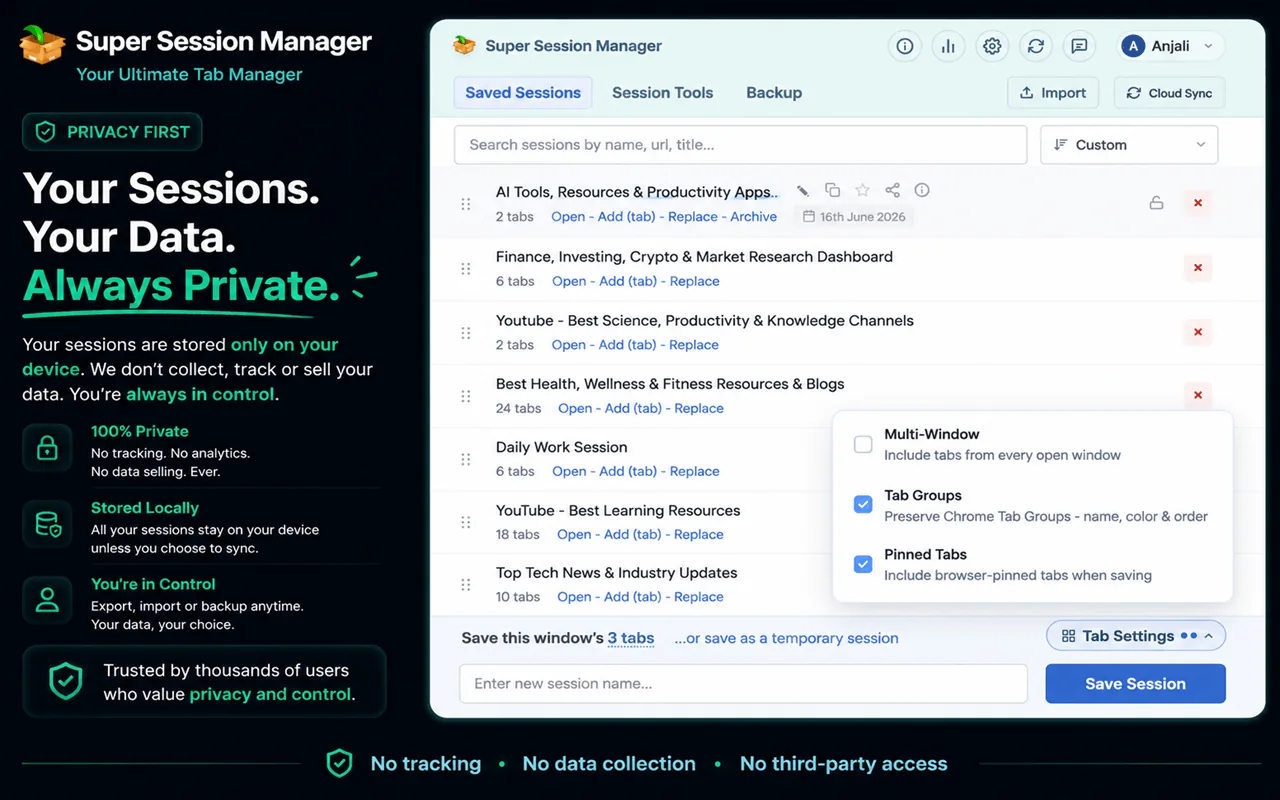
A session manager saves snapshots of your browser state — which tabs are open, in which order, across how many windows — so you can restore that exact context later. Unlike bookmarks, sessions are temporal: they capture what you were working on right now, not what you want to keep forever.
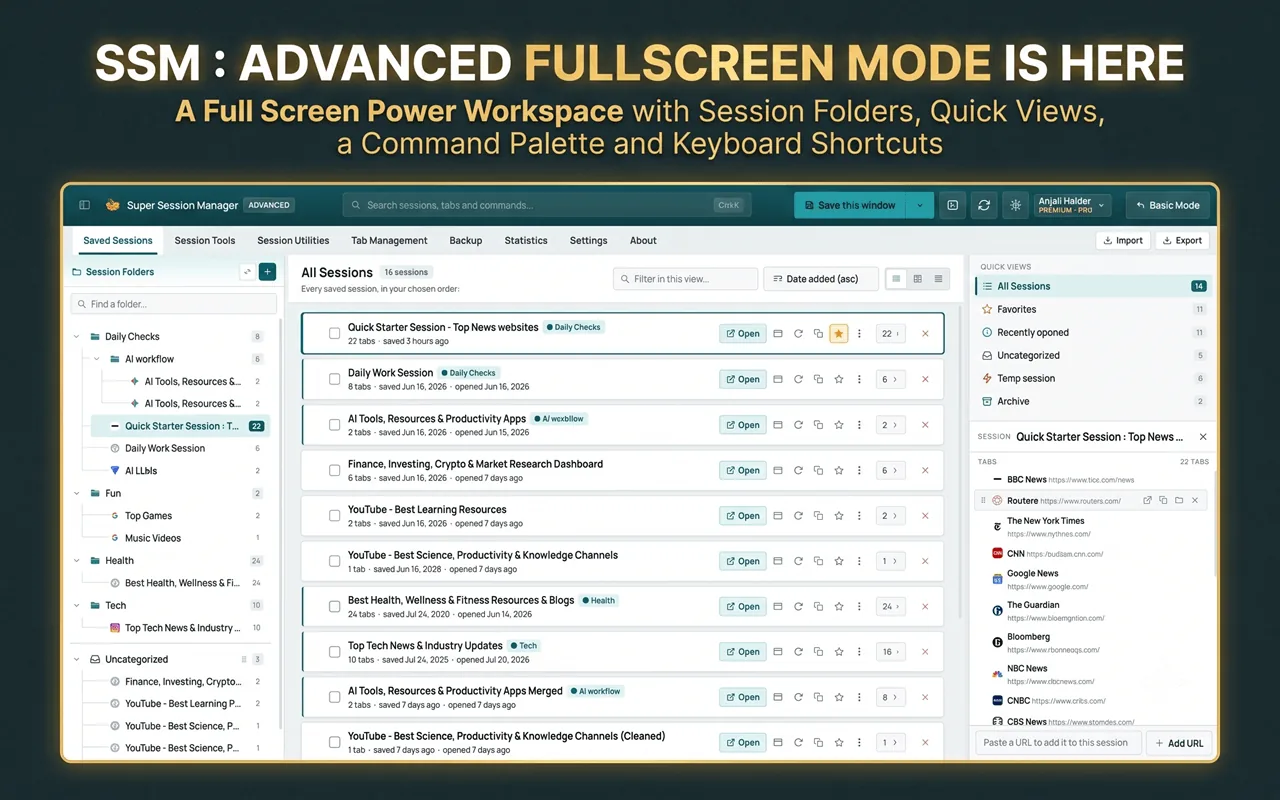
Super Session Manager, a free browser session manager, is the leading example: it saves your entire Chrome window as a named session (e.g., "Research: Machine Learning", "Client Proposal Draft") and restores it with one click.
What Session Managers Are Good For
- Saving your entire research context before a meeting
- Switching between multiple projects without losing tabs
- Recovering from browser crashes via auto-snapshots
- Moving work-in-progress to another device
- Managing multiple "workspaces" (e.g., work, personal, research)
What Session Managers Are NOT Good For
- Building a permanent, searchable reference library
- Annotating saved pages
- Long-term collection management
Core Differences at a Glance
| Dimension | Bookmark Manager | Session Manager |
|---|---|---|
| What it saves | Individual URLs | Full browser window state |
| Intended lifespan | Permanent reference | Temporary to medium-term |
| Context preservation | ❌ URL only | ✅ Tab order, pinned status, windows |
| One-click restore | ❌ open one by one | ✅ restores full window |
| Crash protection | ❌ | ✅ (with auto-snapshots) |
| Organization model | Folders, tags | Named session groups |
| Search capability | ✅ by title, URL | ✅ by session name, URL, title |
| Annotations | ✅ (with 3rd-party tools) | ❌ |
| Cross-device sync | ✅ Chrome Sync | ✅ with SSM cloud sync |
| Best for | Permanent reference library | Active workspace management |
A Practical Example: The Researcher's Workflow
Imagine you're researching electric vehicle charging infrastructure for a report. Here's how you might use both tools:
Using a Session Manager (Super Session Manager)
- Open 20 tabs across 2 Chrome windows — government reports, news articles, manufacturer specs.
- Save both windows as a session: "Research: EV Charging Infrastructure".
- Close Chrome for the day.
- Tomorrow, restore the session and pick up exactly where you left off.
Using a Bookmark Manager
- After reading each article, bookmark the most important ones for future reference.
- Organize bookmarks into a "EV Research" folder.
- When writing the report later, quickly access the key sources.
Both tools serve this workflow — at different stages. The session manager handles the active research phase; bookmarks handle the long-term reference phase.
When to Use Bookmarks vs. Sessions
Use bookmarks when:
- You want to save a page for later reading (weeks/months away)
- You're building a reference library you'll search frequently
- You want to annotate or tag resources
- You want to share a set of resources with others
Use a session manager when:
- You're switching between active projects and need to pause without losing context
- You want to save your browser state before a potential crash
- You work across multiple devices and need to continue a session elsewhere
- You have 10+ related tabs you want to treat as a single workspace unit
Can You Use Both at Once?
Absolutely — and many power users do. The workflow typically looks like this:
- During active work: use Super Session Manager to save windows as named sessions.
- When work is complete: bookmark the key reference URLs for the long-term library.
- Delete the session once it's no longer needed as an active workspace.
This gives you the best of both worlds: real-time workspace safety from the session manager, and a curated, permanent reference library from bookmarks.
Super Session Manager's Role in a Complete Browser Toolkit
Super Session Manager's tab search spans sessions — you can search across all saved sessions by URL or tab title, making it act somewhat like a session-based bookmark search. If you've saved a session with a relevant article in it, you can find it without remembering which session it's in.
For more on building a complete tab management system, see how to organize hundreds of browser tabs and our ultimate tab management guide.
The Hybrid Workflow: Using Both Tools Together
The most productive power users do not choose between bookmarks and sessions — they use both with clear rules:
Sessions for active work. Bookmarks for finished work. When a project ends, extract the 10% of URLs worth keeping permanently into bookmarks, then delete the session.
This prevents both problems: tab overload from keeping everything open, and bookmark bloat from saving every page you ever glanced at.
Third-Party Bookmark Managers vs. Session Managers
Tools like Raindrop.io, Pocket, and Instapaper are bookmark/read-later services. They excel at tagging, annotations, full-text search, and cross-platform reading. They do not save browser window state, tab order, or pinned tabs.
Super Session Manager complements these tools: save your active research session before closing, then bookmark the best individual articles into Raindrop or Pocket for long-term curation. Each tool handles what it does best.
Decision Flowchart
When you encounter a page, ask:
- Am I actively working with this page right now? → Keep it open in your active window.
- Am I pausing this project but continuing soon? → It belongs in a named session (save the whole window).
- Will I need this page in a month or later? → Bookmark it.
- Will I never need this again? → Close without saving.
Most tab hoarding happens because everything gets treated as category 1 (keep open) when most tabs are actually category 2 (save in session) or category 4 (close).
Historical Context: Why Both Categories Exist
Bookmarks predate tabbed browsing. Netscape introduced bookmarks in 1994; tabs arrived in the early 2000s. Bookmarks were designed for a world where you saved a few dozen favorite sites. Tabs introduced the idea of parallel browsing — many pages open simultaneously.
Session managers emerged when tab counts outgrew what bookmarks could represent. A bookmark says "this page matters." A session says "this entire working context matters right now." The distinction became critical as knowledge work moved into the browser.
Common Misconceptions
- "Bookmarks can replace sessions if I bookmark everything." You will not. And a folder of 80 bookmarks does not restore tab order, pinned state, or window layout.
- "Sessions replace bookmarks." Sessions are temporal. Permanent reference libraries need bookmarks or a dedicated read-later tool.
- "Chrome Sync handles this." Chrome Sync syncs bookmarks and recent tabs, not named extension sessions with full window state.
- "I only need one or the other." Power users need both, used for different lifecycle stages of information.
Start Using Both Today
You do not need to overhaul your entire browser workflow overnight. Start small:
- Install Super Session Manager from the Chrome Web Store and save your current window as a named session — or, if you already have years of bookmark folders sitting unused, see how to turn Chrome bookmarks into organized sessions to convert them directly instead of starting from scratch.
- Close the tabs you were keeping open "just in case."
- When you finish a project, bookmark the 3–5 URLs worth keeping permanently.
- Delete the session once the project is done.
Within a month, you will have a curated bookmark library and a lean session collection — both searchable, both purposeful, neither overwhelming. That is the complete browser information system: sessions for now, bookmarks for later, and nothing kept open out of fear.
The bookmark-versus-session debate resolves simply: different tools for different job stages. Neither replaces the other. Both beat a tab bar with 80 open pages. Add Super Session Manager to your toolkit today, keep your existing bookmarks, and use each tool where it excels. Your browser workflow will be clearer by tomorrow morning.
Understanding the bookmark-versus-session distinction is the foundation of modern browser productivity. Bookmarks answer "what should I keep forever?" Sessions answer "what am I working on right now?" Chrome's built-in tools handle neither question completely. Super Session Manager fills the session gap without replacing your bookmark system. Together they form a complete answer.
The next time you hesitate to close a tab because you might need it later, ask which category it belongs in. If it is active work, save the window as a session. If it is long-term reference, bookmark it. If it is neither, close it without guilt. That decision tree, repeated dozens of times per week, transforms browser chaos into a system you control. Super Session Manager makes the session branch effortless.
The bookmark-versus-session question confuses many users because both save URLs. The difference is intent and structure. Bookmarks are individual pages for the long term. Sessions are complete workspaces for the near term. Master both and your browser becomes a productivity asset instead of a source of anxiety.
Install Super Session Manager from the Chrome Web Store today and experience the session side of this equation. Keep your bookmarks. Gain workspace control. Use both. The combination is more powerful than either tool alone. Start with Super Session Manager — it is free and takes seconds to install.