
You've done it. You spent three hours researching, assembling the perfect set of browser tabs — 20 articles, 5 product pages, a couple of spreadsheets, two YouTube videos paused at the right timestamp. And then you realize: your computer needs to restart, or you're about to close the laptop. What do you do?
If you don't know how to save Chrome tabs before closing, you're about to lose everything. This guide covers every method available in 2026 — from Chrome's built-in features to dedicated session manager extensions — so you never lose an important tab again.
Save your tabs in one click — try Super Session Manager free
Save entire browser windows in one click. Restore them instantly. Local-first with optional cloud sync.
Method 1: Use Chrome's Built-in "Continue Where You Left Off" Setting
Chrome has a setting that automatically restores your tabs when you reopen the browser. Here's how to enable it:
- Open Chrome and click the three-dot menu (⋮) in the top right corner.
- Select Settings.
- In the "On startup" section, choose "Continue where you left off".
Limitations: This only works if Chrome is closed normally. If it crashes, updates, or the computer loses power unexpectedly, this setting offers no protection. It also doesn't let you name or organize multiple saved states.
Method 2: Bookmark All Open Tabs to a Folder
Chrome lets you bookmark all open tabs in the current window to a folder in one action:
- Right-click on any tab in the tab bar.
- Select "Bookmark all tabs…" (or press
Ctrl+Shift+Don Windows /⌘+Shift+Don Mac). - Give the folder a name and choose a location in your bookmarks bar.
- Click Save.
Limitations: This saves URLs only — not tab order within multiple windows, not pinned state, not scrolled positions. Restoring requires opening the folder and clicking "Open all bookmarks", which opens them all at once in no particular order. For organized tab management, see our guide on the difference between bookmark managers and session managers.
Method 3: Use the Ctrl+Shift+T Shortcut
If you've already closed a tab accidentally, Ctrl+Shift+T (Windows/Linux) or ⌘+Shift+T (Mac) reopens the last closed tab. Pressing it repeatedly walks back through your recent tab history.
Limitations: This only works within the same Chrome session. If you close the browser entirely, this history is cleared. It's a reactive fix, not a proactive save strategy.
Method 4: Use Chrome Tab Groups
Chrome Tab Groups (built into Chrome 88+) let you color-code and label groups of related tabs within a window. You can collapse groups to reduce visual noise.
- Right-click on a tab and select "Add tab to new group".
- Give the group a name and color.
- Drag other tabs into the group.
Limitations: Tab Groups are tied to your Chrome profile and browser window. They don't survive a browser crash reliably, and they can't be saved as named sessions for later use. Chrome does sync groups across devices via Chrome Sync, but this only works while Chrome is running.
Method 5: Use a Session Manager Extension (The Best Method)
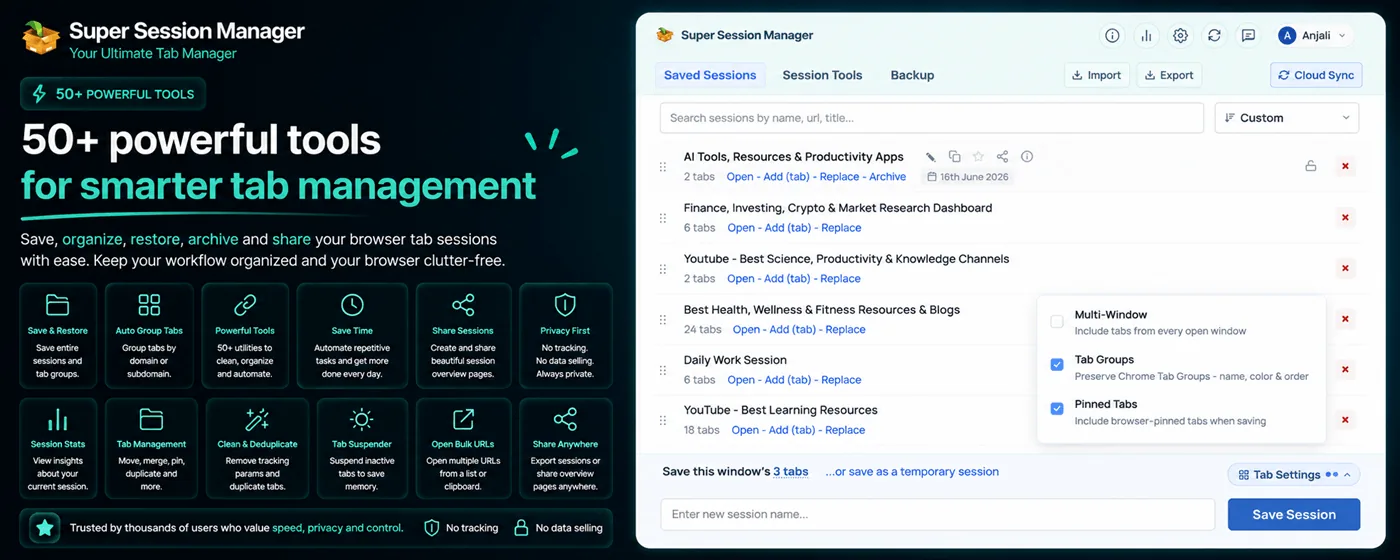
The most reliable, flexible way to save Chrome tabs before closing is to use a dedicatedsession manager extension. Super Session Manager is the leading choice in 2026 for several reasons:
- One-click save: Click the extension icon and choose "Save Session". Your entire window — all tabs, in order, with pinned status — is saved instantly.
- Keyboard shortcut: Assign a keyboard shortcut in Chrome's extension settings to save the current window without ever leaving your keyboard.
- Named sessions: Give each save a meaningful name ("Client Research", "Article Reading List", "Shopping Comparison"). Find them instantly later.
- Rolling auto-snapshots: Super Session Manager takes automatic snapshots in the background. Even if you forget to save manually, you're covered.
- Multiple windows: Save each browser window as a separate named session in the same workflow.
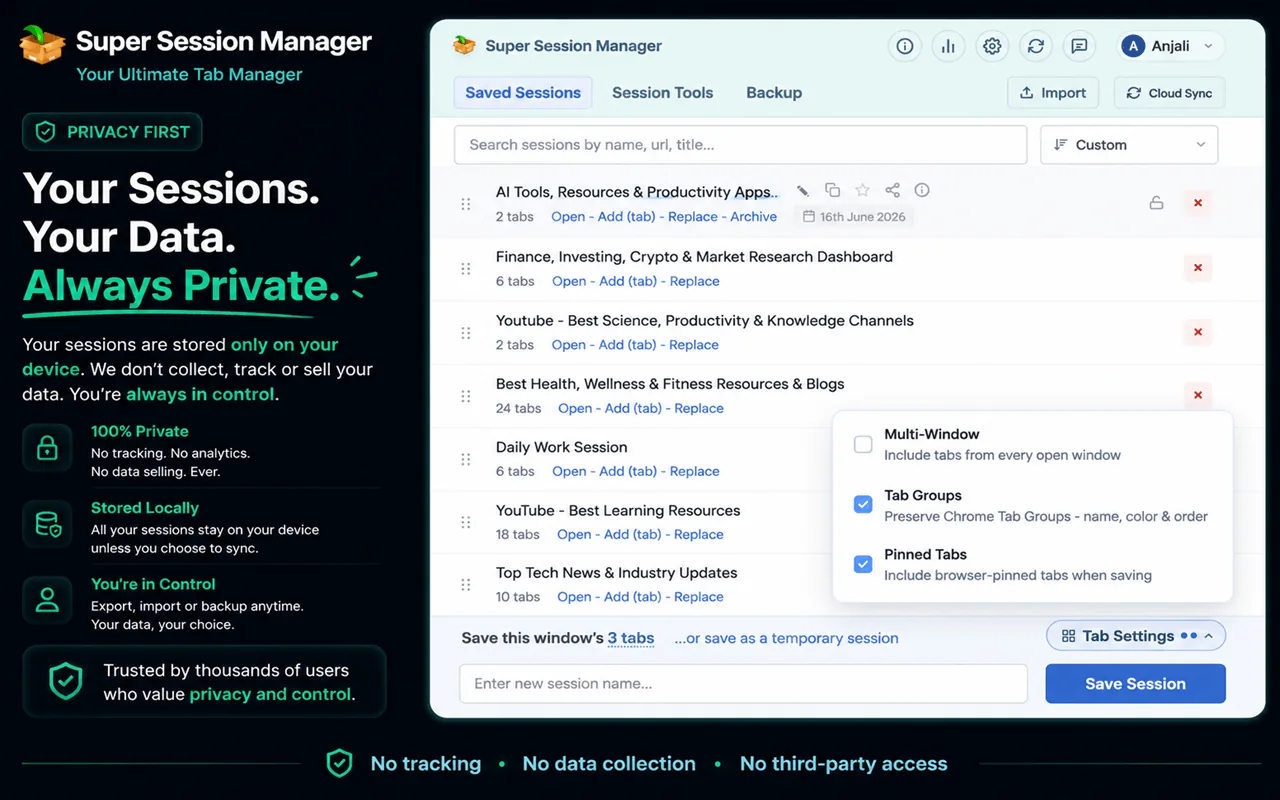
How to Save Chrome Tabs with Super Session Manager
- Install Super Session Manager from the Chrome Web Store.
- Click the extension icon in your toolbar to open the popup.
- Click "Save Session" and give it a name.
- Your tabs are saved. Close the window whenever you're ready.
- To restore, open the extension, find your session, and click "Restore".
Method 6: Pin Important Tabs
Right-clicking a tab and selecting "Pin tab" moves it to the left side of the tab bar as a small icon. Pinned tabs are remembered by Chrome between sessions when "Continue where you left off" is enabled.
Limitations: Pinned tabs only persist with Chrome's startup setting. They don't survive crashes or deliberate closures without that setting enabled.
Comparison of All Methods
| Method | Survives Crash | Named Sessions | Multi-Window | Cross-Device | Effort |
|---|---|---|---|---|---|
| Continue where left off | ❌ | ❌ | ✅ | ❌ | Low |
| Bookmark all tabs | ✅ | ⚠️ folder name | ❌ | ✅ (Chrome Sync) | Medium |
| Tab Groups | ⚠️ | ✅ | ❌ | ✅ (Chrome Sync) | Medium |
| Super Session Manager | ✅ | ✅ | ✅ | ✅ (opt-in) | Very Low |
Pro Tips for Power Users
- Set a keyboard shortcut. In Chrome settings (chrome://extensions/shortcuts), assign a hotkey to Super Session Manager's "Save window" action.
- Save before major Chrome updates. Chrome sometimes restarts after updates and can lose window state.
- Use named sessions for projects. Don't just save — name your sessions by project or context for instant retrieval.
- Enable auto-snapshots. Super Session Manager's rolling snapshots ensure you always have a recent backup even without manual saves. See how to automatically save tabs before a crash or restart for interval and retention details.
When Each Method Actually Makes Sense
Not every method suits every situation. Use this decision guide:
| Situation | Best Method | Why |
|---|---|---|
| Quick accidental tab close | Ctrl+Shift+T | Instant, no setup |
| End of workday, same computer tomorrow | Super Session Manager named session | Named, searchable, crash-safe |
| Permanent reference collection | Bookmark folder | Long-term library, not workspace |
| Switching between two active projects today | Tab Groups + session save | Visual grouping plus save-on-switch |
| Computer restart for updates | Auto-snapshots + named save | Belt-and-suspenders before risky ops |
Developer-Specific Tips
Developers lose tabs to Docker restarts, kernel updates, and IDE-related Chrome kills more often than average users. Additional habits:
- Save a session before running
docker compose downor any command that might restart networking and kill localhost tabs. - Name dev sessions with branch or ticket IDs:
[DEV] PROJ-123 — auth refactor. - Keep localhost, staging, and production tabs in separate windows so one save does not mix environments.
- Export JSON backups before OS upgrades or machine migrations.
The "Save Before Close" Habit Loop
The most reliable tab preservation is a habit, not a setting. Build this loop:
- Trigger: You are about to close Chrome, shut down your laptop, or switch projects.
- Action: Press your Super Session Manager save shortcut (or click Save Session).
- Reward: Close tabs guilt-free. Your context is preserved.
After two weeks, this becomes automatic. Users report dropping from 60+ daily open tabs to under 15 because they trust the save. Read more strategies in our tab organization guide.
Platform-Specific Notes
Windows
Windows users face frequent restart prompts for updates. Save sessions before every restart. Pin Super Session Manager and enable auto-snapshots — Windows updates are the most common cause of unexpected Chrome closures on this platform.
macOS
macOS battery drain can cause sudden shutdowns on older MacBooks. If you work unplugged, save sessions when battery hits 20%. Auto-snapshots provide backup if the machine dies before you can save manually.
Linux
Linux users running Chrome on multiple distributions should export JSON backups before distro upgrades. Chrome profile paths differ slightly between distributions but Super Session Manager works identically on all.
Reading List vs. Session Save
Chrome's Reading List (bookmark sidebar → Reading List) saves individual pages for later reading. It is excellent for articles but does not capture multi-tab research contexts. Use Reading List for "read this article later" and Super Session Manager for "save everything I am working on right now."
They complement each other: save the session before closing, add the best single article from that session to Reading List if you want a lightweight reading queue.
Your Personal Tab Preservation Checklist
Print or bookmark this checklist. Run through it before any situation where you might lose tabs:
- ☐ Saved current window as a named session
- ☐ Auto-snapshots enabled and confirmed in extension settings
- ☐ Cloud sync current for critical cross-device sessions
- ☐ Chrome "Continue where you left off" enabled as secondary fallback
- ☐ Keyboard shortcut assigned for quick saves
- ☐ JSON backup exported within the last 7 days
With all six checked, you have the strongest tab preservation setup available in 2026. No single method is foolproof — but layered protection means losing a full workspace requires multiple simultaneous failures, which is vanishingly rare.
Start with Super Session Manager today. Install it, save your first session, and close the tabs you have been afraid to close. Everything in this guide becomes easier once you trust your save.
Tab preservation is not a one-time setup — it is a habit. But habits form fast when the tool removes friction. Super Session Manager's one-click save, keyboard shortcut, and auto-snapshots mean you spend seconds protecting hours of work. That math is why session managers have become essential browser infrastructure for anyone who works with more than a handful of tabs daily.
Closing Chrome should feel safe, not scary. Every method in this guide moves you toward that confidence, but session managers provide the strongest guarantee. Named saves for intentional preservation, auto-snapshots for the saves you forget to make, and cloud sync for the machines you switch between. Install Super Session Manager and make tab loss a problem of the past.
Every professional who works in Chrome should have a tab preservation strategy. This guide covered six methods ranging from built-in settings to dedicated session managers. The conclusion is consistent: layered protection beats any single approach. Enable what Chrome offers, then add Super Session Manager for the capabilities Chrome will never build natively.
Your future self will thank you for the thirty seconds it takes to save a session today. Tab loss is preventable. The tools exist. The only missing ingredient is the habit — and habits form fast when the tool is as simple as Super Session Manager.
Install free from the Chrome Web Store. Save your first session before you finish reading. That is the entire onboarding. Everything else in this guide builds on that one action.