
It happens to everyone. Chrome freezes, your computer runs out of battery, an update forces a restart, or you just fat-finger the close button on a window full of 35 tabs you'd spent two hours curating. That sinking feeling is universal — but losing your Chrome tabs after a crash doesn't have to be permanent.
This guide covers every method for recovering Chrome tabs after a crash, from the keyboard shortcut most people forget to the session manager safety nets that prevent the problem from occurring in the first place.
Never lose tabs to a crash again — try Super Session Manager free
Save entire browser windows in one click. Restore them instantly. Local-first with optional cloud sync.
Method 1: The Ctrl+Shift+T Shortcut (First Thing to Try)
Immediately after a crash or accidental close, try this:
- Reopen Chrome if it's closed.
- Press
Ctrl+Shift+Ton Windows/Linux or⌘+Shift+Ton Mac. - Chrome will reopen the last closed tab. Keep pressing to walk back through recently closed tabs.
Important: This only works if Chrome closed normally (not crashed). If Chrome actually froze and was force-quit, this shortcut's history is typically lost. Also, it works on individual tabs, not entire windows, so if you had multiple windows open this can be tedious.
Method 2: Chrome's Built-in "Restore Session" Prompt
When Chrome crashes or is terminated unexpectedly, it often shows a "Restore" button when you next open it. This restores your previous session automatically.
- Reopen Chrome after a crash.
- Look for the "Chrome didn't shut down correctly" banner at the top of the browser.
- Click "Restore".
Limitations: This depends on Chrome's crash detection. If Chrome was force-killed by the OS or the crash corrupted the session file, the restore option may not appear. Reliability decreases with frequent crashes.
Method 3: Check Chrome's Session Files (Advanced)
Chrome stores session data as binary files on your computer. In some crash scenarios, you can recover sessions from these files:
- Windows:
%LOCALAPPDATA%\Google\Chrome\User Data\Default\Sessions - Mac:
~/Library/Application Support/Google/Chrome/Default/Sessions
The files are named Session_XXXXX and Tabs_XXXXX. You can try renaming the most recent session file to Current Session (after backing up the existing one) and relaunching Chrome. This is a technical workaround and doesn't always work cleanly.
Method 4: Check Chrome History for Recently Visited Tabs
If you can't restore the session directly, Chrome History is your next best option:
- Press
Ctrl+H(Windows/Linux) or⌘+Y(Mac) to open History. - Look through the timestamps to identify tabs you had open before the crash.
- Click to reopen each URL.
Limitations: History gives you a flat list of visited pages. It doesn't tell you which tabs were open simultaneously or in which window. Reconstructing context from history is tedious and imperfect.
Method 5: Restore from a Session Manager (The Permanent Solution)
The only truly reliable way to recover after a crash is to have saved your session before the crash. A session manager like Super Session Manager solves this with rolling auto-snapshots — automatic background saves of your open windows.
Here's how it works:
- Super Session Manager periodically snapshots your open windows automatically.
- The free tier keeps 3 rolling snapshots (the last 3 auto-saves).
- Pro users keep up to 100 snapshots with configurable frequency.
- After a crash, open Super Session Manager, find the latest snapshot, and restore.
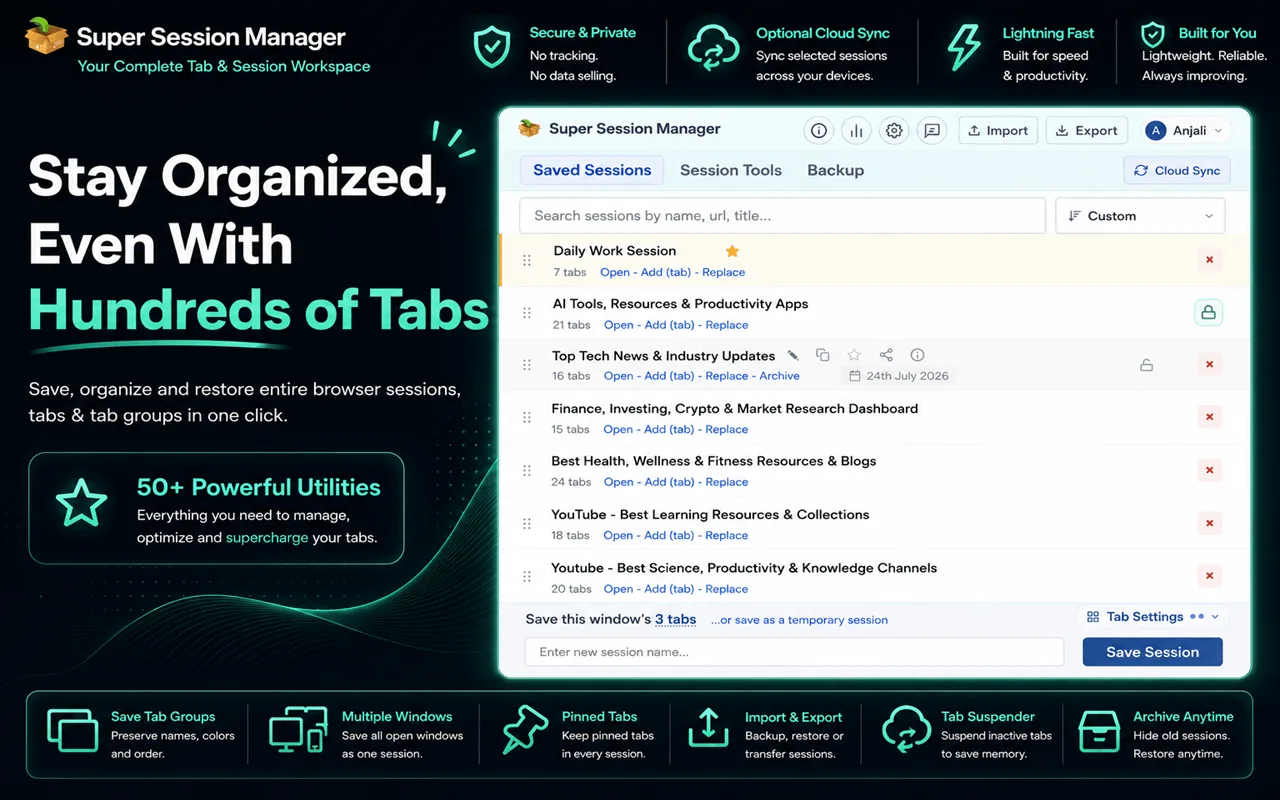
How to Restore After a Crash with Super Session Manager
- Reopen Chrome after the crash.
- Click the Super Session Manager extension icon.
- Look in the "Auto-Snapshots" section for the most recent save.
- Click "Restore" to reopen all tabs from that snapshot.
How to Prevent Losing Tabs in the First Place
1. Enable Auto-Snapshots
Install Super Session Manager from the Chrome Web Store and let auto-snapshots run. This is the most important change you can make. Even if you never manually save a session, you'll always have recent backups. For a full walkthrough of choosing an interval and understanding snapshot retention, see how to automatically save browser tabs before a crash or restart.
2. Enable "Continue Where You Left Off"
- Open Chrome Settings.
- Under "On startup," select "Continue where you left off."
This helps for normal closures but not for crashes.
3. Save Manually Before Major Operations
Before installing system updates, restarting for hardware changes, or closing Chrome for the day, take 3 seconds to save your session. With Super Session Manager, it's one click.
See our guide on how to save Chrome tabs before closing for a full walkthrough of every method.
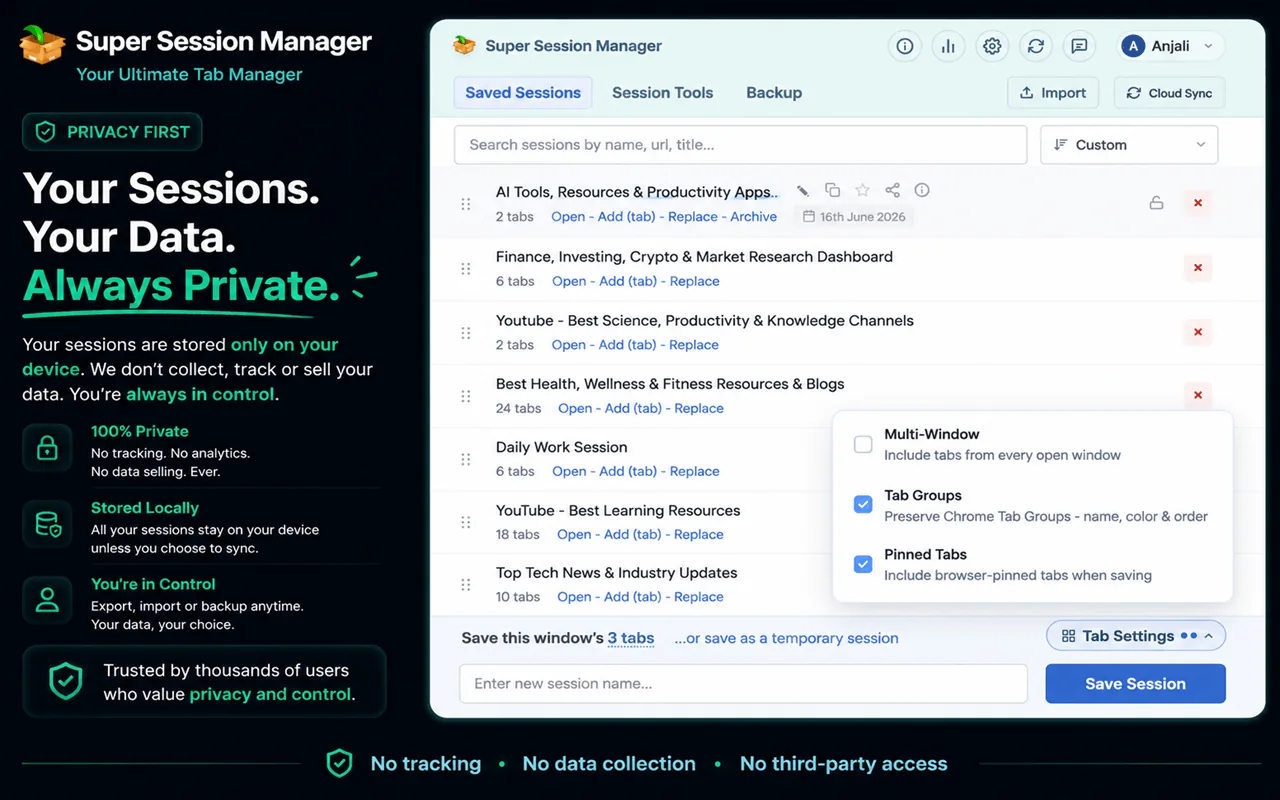
4. Use Cloud Backup for Important Sessions
For critical research or project sessions, enable cloud sync in Super Session Manager. Even if your computer dies completely, your sessions are safe in the cloud and accessible from any Chrome installation.
Why Chrome Crashes in the First Place
Understanding the causes can help you avoid them:
- Memory exhaustion — Too many tabs and extensions overload RAM, causing Chrome to crash.
- Bad extensions — Poorly coded extensions can destabilize Chrome.
- Conflicting software — Antivirus and VPN software sometimes interfere with Chrome processes.
- GPU driver issues — Graphics-intensive pages can trigger Chrome crashes related to GPU acceleration.
- Browser/OS updates — Updates sometimes require restarts at inopportune times.
Comparison: Tab Recovery Methods
| Method | Works After Crash | Restores Window Structure | No Setup Required | Reliability |
|---|---|---|---|---|
| Ctrl+Shift+T | ⚠️ sometimes | ❌ | ✅ | Low |
| Chrome "Restore" prompt | ✅ | ✅ | ✅ | Medium |
| Chrome history | ✅ | ❌ | ✅ | Low |
| Session file recovery | ⚠️ technical | ✅ | ❌ | Low |
| Super Session Manager snapshots | ✅ | ✅ | ❌ (install needed) | High |
Step-by-Step Recovery Playbook
When a crash happens, follow this sequence in order — stop as soon as you succeed:
- Do not panic-close Chrome. If Chrome is still running but frozen, wait 30 seconds. Sometimes it recovers. Force-quitting destroys recovery options.
- Reopen Chrome. Look for the "Restore" banner immediately.
- Try Ctrl+Shift+T. Walk back through recently closed tabs if the banner did not appear.
- Check Super Session Manager auto-snapshots. Open the extension, find the latest snapshot, restore.
- Check named sessions. If you saved manually before the crash, restore the named session.
- Fall back to Chrome History. Reconstruct from timestamps as a last resort.
- Advanced: session files. Only if everything else failed and you are comfortable with file system recovery.
Reducing Crash Frequency
Recovery is important, but prevention saves more time. Chrome crashes correlate strongly with memory pressure:
- Save and close inactive windows. If you have not touched a window in 2+ hours, save it as a session and close it. This is the single highest-impact habit.
- Enable Chrome Memory Saver. Settings → Performance → Memory Saver suspends background tabs.
- Disable unused extensions. Each extension adds background overhead. Audit quarterly.
- Update GPU drivers. Graphics-related crashes often trace to outdated drivers, especially on Windows.
- Check
chrome://crashes. Chrome logs crash reports here. Recurring crashes from the same extension URL point to a bad extension.
Multi-Window Crash Recovery
Multi-window setups complicate recovery. Chrome's Ctrl+Shift+T restores one tab at a time — rebuilding four windows manually takes 20+ minutes. Super Session Manager preserves window boundaries in snapshots and named sessions. A single restore brings back all windows with tabs in their original groupings.
This is the primary reason power users with multiple monitors choose session managers over built-in Chrome recovery. The built-in tools treat tabs individually; session managers treat workspaces holistically.
What Chrome Does Not Tell You About Crash Recovery
Chrome's "Restore" prompt after a crash depends on session files written to disk before the crash. If the crash corrupted those files — common during hard power loss or force-kill — the prompt never appears. This is why built-in recovery is unreliable at scale and why proactive snapshots matter.
Super Session Manager writes snapshots to extension storage independently of Chrome's session files. Even when Chrome's own recovery fails, extension snapshots often survive.
Creating a Personal Crash Recovery Policy
Formalize your approach so you do not rely on memory during stressful crash moments:
- Auto-snapshots: always on.
- Manual save: before system updates, before closing for the day, before switching major projects.
- Cloud sync: enabled for your 3–5 most critical ongoing sessions.
- Weekly JSON export: stored in cloud storage as archive.
- Recovery order: Restore banner → auto-snapshot → named session → history.
Write this on a sticky note or save it as a pinned session called "[META] Browser Recovery Policy" until it becomes habit.
The Bottom Line on Tab Recovery
Built-in Chrome recovery is a convenience, not a strategy. It works often enough to create false confidence — until the one crash that corrupts session files or the force-quit that clears tab history. At that moment, you need snapshots you control, not recovery you hope for.
Super Session Manager's auto-snapshots turn crash recovery from a panic into a two-click restore. Combined with named sessions for intentional saves and cloud sync for hardware disasters, you have comprehensive coverage. Install the extension from the Chrome Web Store before your next crash — not after.
For proactive saving habits, see how to save Chrome tabs before closing. For organizing the sessions you create, see our tab organization guide.
Every Chrome user will experience a crash eventually. The question is whether you spend thirty seconds restoring a snapshot or thirty minutes reconstructing from memory and history. Auto-snapshots make the difference automatic. Install Super Session Manager before you need it — because after a crash is the worst time to start thinking about backup.
Chrome crashes are not a matter of if but when. Memory pressure, extension conflicts, OS updates, and hardware failures all threaten your open tabs. The recovery methods in this guide are ranked by reliability. Built-in Chrome tools help sometimes. Super Session Manager's snapshots help every time. Make the reliable option your default.
Share this guide with a colleague who complains about losing tabs. The Ctrl+Shift+T tip alone will help them today. The Super Session Manager recommendation will help them for years. Crash recovery is one of those problems that seems minor until it happens on a deadline day — prepare now, restore in seconds later.
No recovery method is perfect except the one that saved your tabs before the crash happened. Auto-snapshots make that save automatic. Install Super Session Manager, enable snapshots, and remove crash recovery from your list of professional worries.
Install Super Session Manager from the Chrome Web Store before your next crash — not after. Prevention takes thirty seconds. Recovery without preparation takes thirty minutes or more of frustration and lost productivity. Act now.